
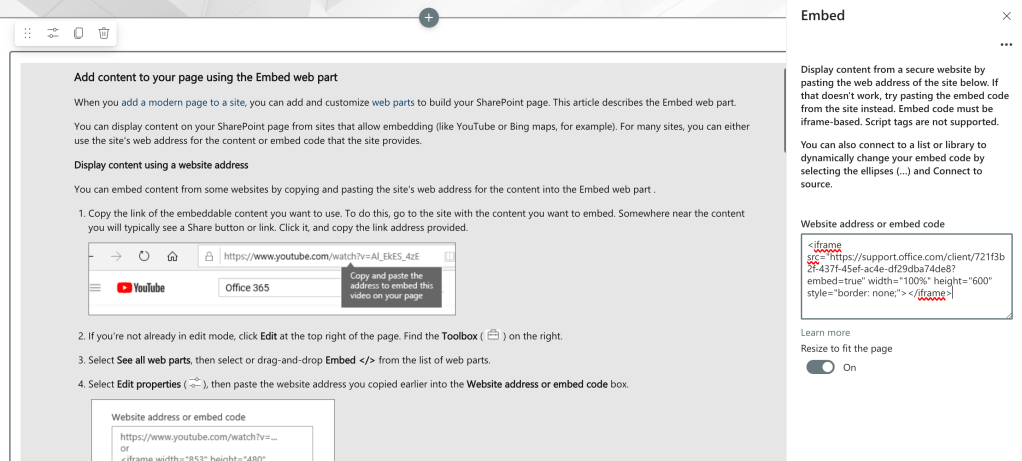
Let’s say you’ve found a beautiful, shiny Microsoft Support article. You want to embed it on a SharePoint page to give users direct access without sending them on a hyperlink scavenger hunt. Great idea! But if you just paste the link, SharePoint shrugs. What you need is a slightly modified URL that works nicely inside the Embed web part. Here’s how to unsuck that experience.
Step 1: Grab your Microsoft Support URL
Example:https://support.microsoft.com/en-us/office/add-content-to-your-page-using-the-embed-web-part-721f3b2f-437f-45ef-ac4e-df29dba74de8
Step 2: Extract the GUID at the end
In this case, it’s:721f3b2f-437f-45ef-ac4e-df29dba74de8
Step 3: Rebuild the URL using the Office client format
Use the following base URL:
https://support.office.com/client/
Then add the GUID from the previous step. Resulting in:
https://support.office.com/client/721f3b2f-437f-45ef-ac4e-df29dba74de8Step 4 (Optional but recommended): Clean it up!
Adding ?embed=true will remove the feedback prompt and other unnecessary UI. Final URL that you will copy in your embed web part is:
https://support.office.com/client/721f3b2f-437f-45ef-ac4e-df29dba74de8?embed=true
Bonus: Embed a specific tab
Sometimes those support articles come with tabs. If you want a specific tab (like “Status”) to open by default, grab the anchor from the original URL.
Example source URL:
https://support.microsoft.com/en-us/office/notifications-and-settings-afe6d0e5-34f3-4469-b7bd-905aab4042a3?ui=en-US&rs=en-US&ad=US#ID0EAABAAA=Status
Final embed-ready URL becomes:https://support.office.com/client/afe6d0e5-34f3-4469-b7bd-905aab4042a3?embed=true#ID0EAABAAA=Status
And in that same example, the full iframe code is as follows:
<iframe src="https://support.office.com/client/afe6d0e5-34f3-4469-b7bd-905aab4042a3?embed=true#ID0EAABAAA=Status" width="100%" height="600" style="border: none;"></iframe>One thing to be mindful of is that, height=600 will be a value you will need to play with to accomodate the height of the page, so that you don’t end up with scrollbars (or you may want to, depending on your page layout).
What if you get an error?
You may see the below error when entering the content in the embed web part:

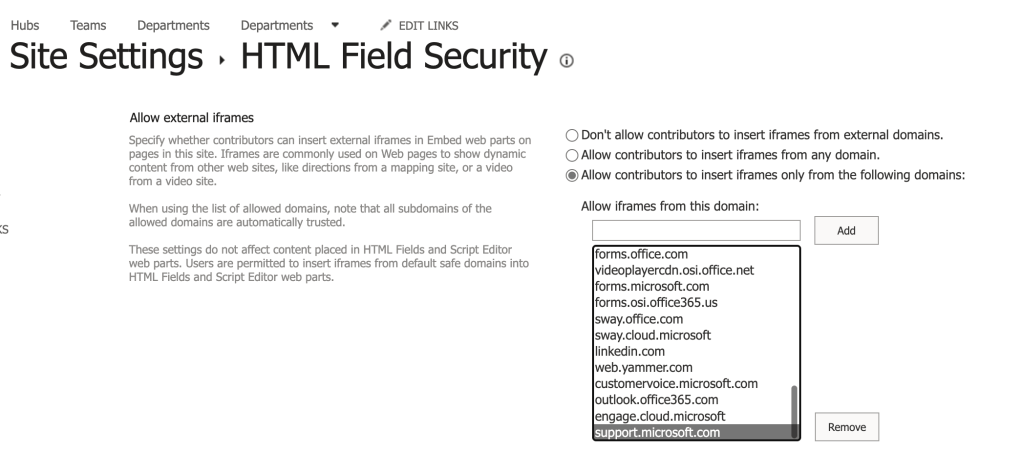
If when you paste the embed code you get the same error message, don’t fret. Just go to your site settings and click on “HTML Field Security” and allow iframes to be inserted from that URL. In this example, support.microsoft.com had not previously been authorized.
Why this matters
This trick helps you surface helpful Microsoft Support or training content directly where users are already working—inside SharePoint. No pop-ups, no distractions, just the info they need when they need it. And yes, you’re doing it in style.
This tiny little embed hack goes a long way in helping you build unsucky pages and elevate the user experience without extra dev work.
 Unsuck Microsoft365