
I just went through the joy (and pain) of reinstalling the Center of Excellence (CoE) for Power Platform from the ground up for a brand new M365 tenant. I don’t know about you, but that’s something I thankfully don’t do every day.
Anyway, since instant gratification is a much more exciting thing – I was sadly disappointed when I realized my inventory was not available right away in the dashboards and I started wondering why. And honestly, it had been so long I last installed the CoE that I can’t remember if this was how I felt last time I did it. So I fired up my browser and found some discussions online that didn’t quite explain it other than say it took them a “long time”. Which is when I started digging into the flows a bit and found the solution to my problem on the very first flow, called Admin | Sync Template v3 (Driver). For those of you that do not know what it does, it is the very first flow in the chain which will eventually trigger all the other ones. Here is how that flow is triggered:
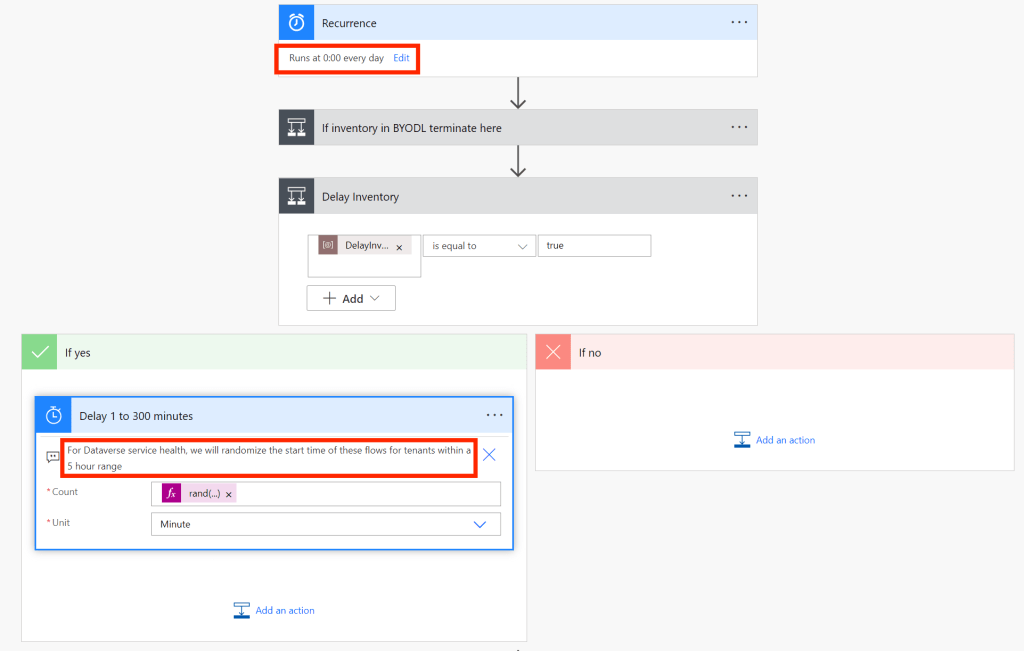
Now I get that the warning in the delay says “For Dataverse service health, we will randomize the start time of these flows for tenants within a 5 hour range” and it would probably not be a good thing for Microsoft if every M365 tenant runs this flow (which will run for a long time if you have plenty of apps/flows) at the same time, because the default from the Starter Kit is 0:00 every day. But literally that delay formula was “rand(1, 300)” which will generate a random number between 1 and 300, and will therefore delay your flow for (you guessed it) up to 5 hours!
So the solution here was either to remove the delay action or what’s even simpler, change the Delay Inventory condition. Now you have two ways of doing this – since this is a managed solution, editing the flow would create the customization and a new unmanaged layer and you don’t want to mess that up. The best way? In your CoE solution, look for an app called “CoE Admin Command center” where you can actually edit the Delay Inventory variable without messing up your solution.
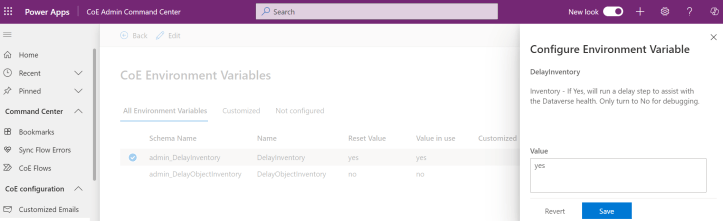
Once edited, the customized variable will look like this:
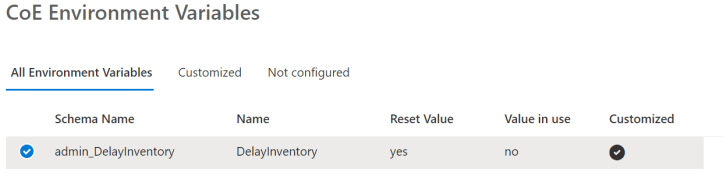
This worked for me like a charm, but you just gotta make sure to revert it back to the original value after because we are all kind to each other and don’t want things slowing down more than they should.
 Unsuck Microsoft365